How to Calculate Monthly Loan Repayment in Google Sheets
Have you ever considered taking out a loan but are unsure how much you will have to pay each month to pay it off? Before purchasing a loan, you can easily calculate the monthly Equated Monthly Installment (EMI) using a calculator or through a spreadsheet like Google Sheets, which we will discuss in this article.
Google Sheets is a free, cloud-based spreadsheet application that can be easily used to calculate the monthly loan repayment for your lender. The monthly payment remains fixed for the entire tenure until it is fully paid off.
Step By Step Guide
Before starting the calculation, you must have these values that will be used in the formula inside spreadsheet to calculate the monthly payment. These values are :
- Loan amount(principal)
- Annual Interest Rate
- Loan Tenures ( Years or Months)
In Google Sheets, there’s already a PMT function which can be used in the formula to calculate the monthly EMI or payments. Here’s the formula.
EMI = PMT(rate, number_of_periods, loan_amount)
Assume that these are the known values which are required to calculate monthly repayment -
- Loan amount ( principal) - $50,000
- Annual Interest Rate - 8%
- Loan Tenure (Years) - 5 years (which means a total number of payments = 60)
Step 1 : Entering the values in rows and columns
Launch the Google Sheets and into rows and columns, enter the values in each cell such as the left side carries the name of the value in text and the adjacent right side holds the corresponding numeric value as shown below :
| Cell | Value |
|---|---|
| A1 | Loan Amount |
| A2 | Annual Interest Rate |
| A3 | Loan Tenure (Years) |
| B1 | 50000 |
| B2 | 10 |
| B3 | 5 |
Step 2: Using the PMT Formula for calculation of EMI
=PMT(B2/12, B3*12, -B1)
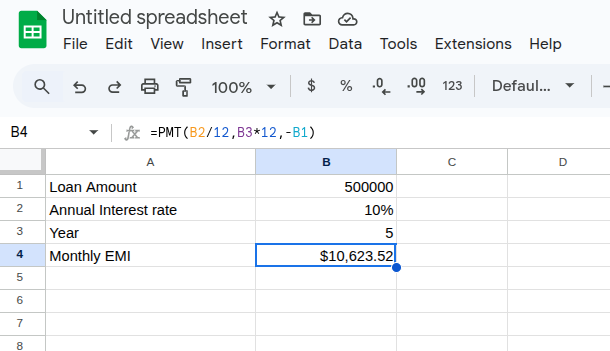
Into the function area just copy the formula as shown above and hit enter, this will show you the result
Result: The calculated monthly loan repayment (EMI) will be approximately ₹10,623.53 in this case.
Similarly, you can use the above formula in Google sheet to calculate the monthy EMI Payment. Just replace the values with your own and you will get the result